1. Choose the location you want to embed the media (Discussion board post, Assignment entry)
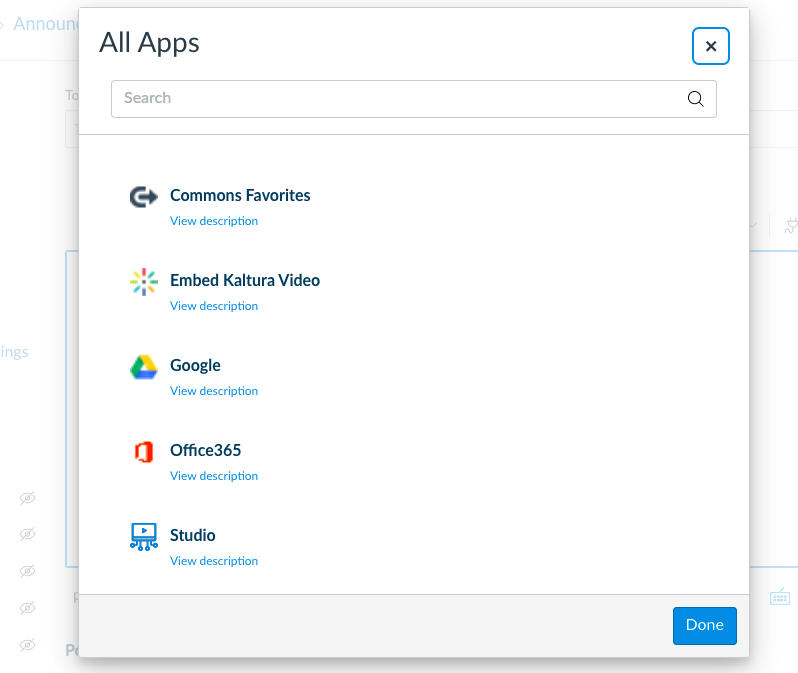
2. In the Rich Text Editor, click the plug icon and then click View All.
3. Select Embed Kaltura Video.
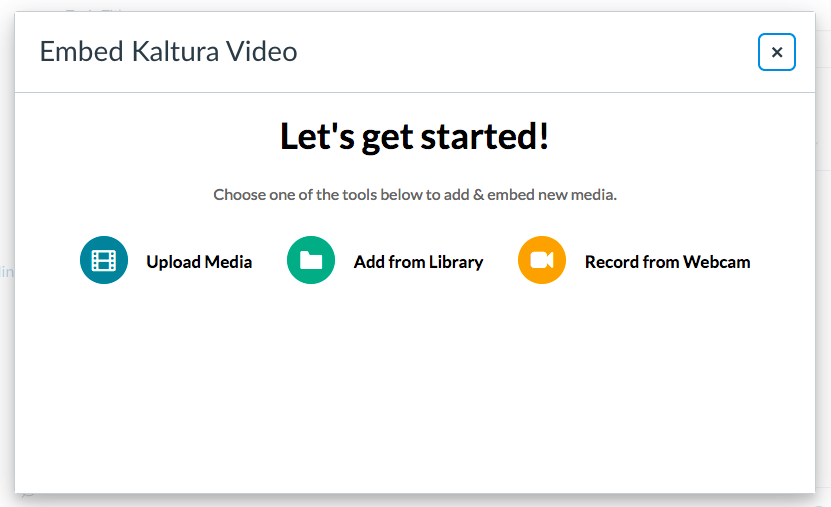
4. Then click Record from Webcam.
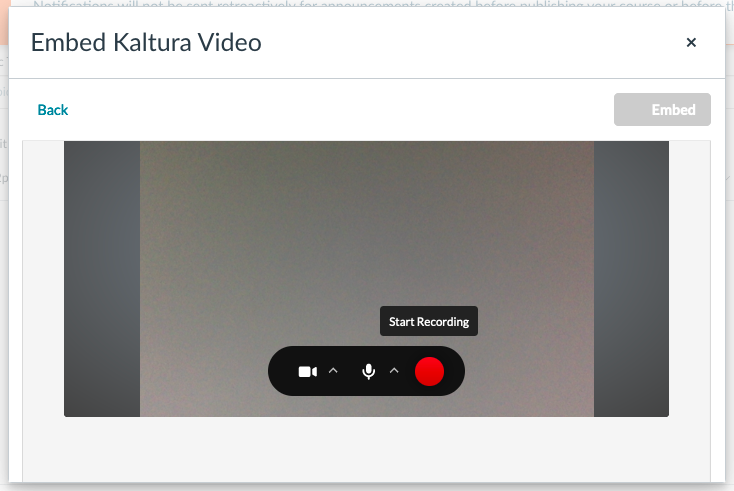
5. Allow access to your microphone and webcam if prompted.
6. Click the red record button to begin recording.
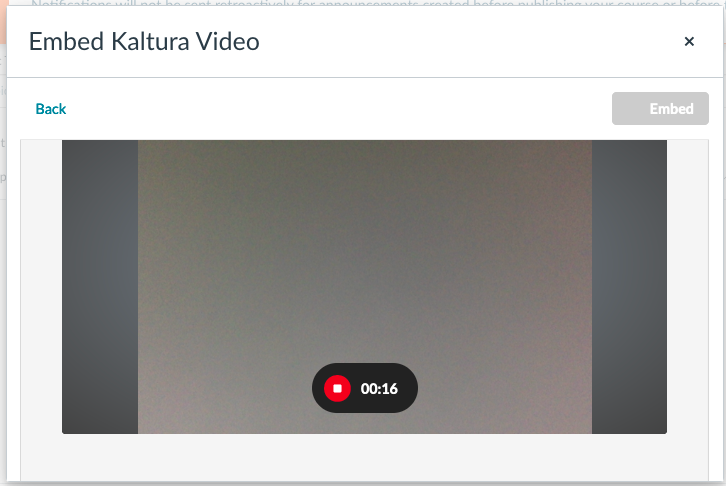
7. Click the stop recording button when you’ve finished recording your content.
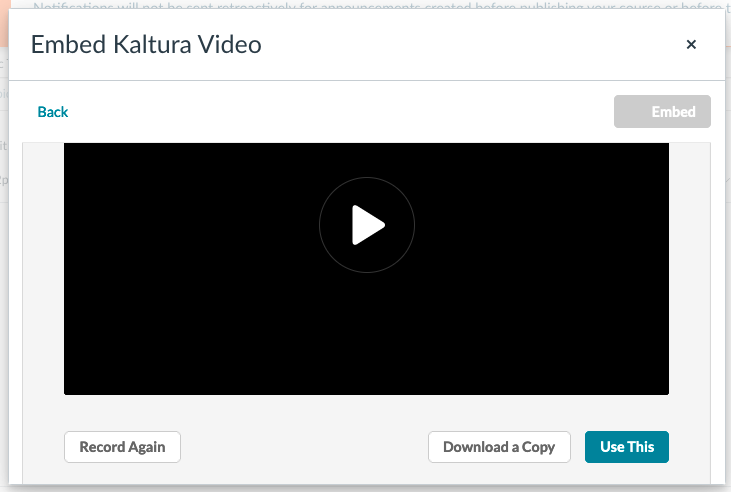
8. Replay the recording if needed, and then click Use This.
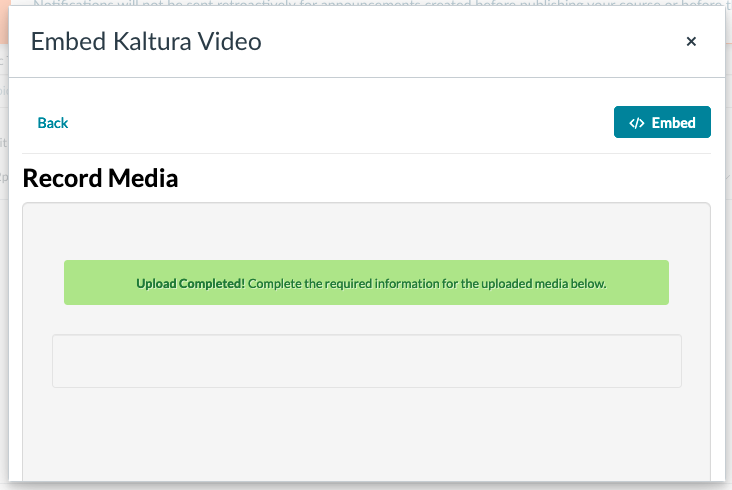
9. Then click the Embed button.
10. Then, back in the Rich Text Editor, wait for the recording to process and then click Reply.